Consolidation summary |
  
|
Consolidation summary |
|
Consolidations are a means of grouping and adding up the results of individual prospect evaluations or previous consolidations.
Although consolidating results is in principle very simple (distributions are added together just as they are multiplied together in a prospect evaluation) the concept of common risk and how it is best handled is extremely important and should be fully understood.
The consolidation summary screen controls all the consolidation entry, calculation and results tasks.
On the left of the window there is a list of all the consolidations currently active. You can click on any entry to make this consolidation active. You can also remove consolidations from the list by right clicking on it, and choosing "Remove". (Other useful options from this menu include "View consolidation hierarchy" (a tree view of the files being consolidated) and "Quick ID", allowing you to change the name and case of the consolidation very easily.)
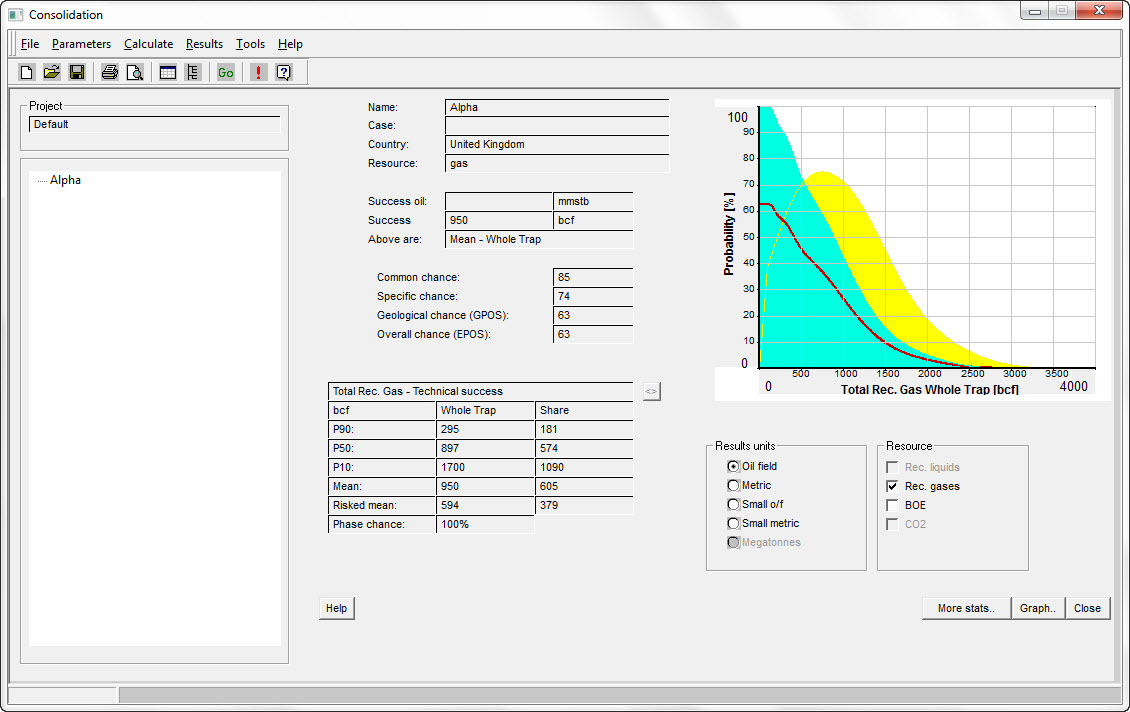
On the right of the screen, a summary of the currently active consolidation is shown.
By default, the results plot has automatic scaling. If you right-click in the plot you can set the scales - see below.
At the top of the window is the menu bar, from which all actions are initiated. Common actions also have buttons in the tool bar. See 'Consolidation Menu' for more information.
Project |
|
Project |
Denotes the project currently selected |
Consolidation summary |
|
Results units |
Select desired unit for results output |
H/c |
Toggle between hydrocarbon types |
More stats.. |
Click for more detail on the results distribution |
Graph.. |
Show summary graph in new window |
1ary/2ary.. |
Shows the split between primary and secondary porosity systems. |
Close |
Close selected consolidations summary |
When you first read a file, the summary results are taken from the file. When you change a parameter and run a calculation, the screen is updated with the new results.
If you have more than one consolidation active, you can click the consolidation (or layer/model/segment) to see it's particular results.
The summary shows the ID of the consolidation (+ current *segment, *model and layer) at the top left of the screen. Below are shown the defined hydrocarbons, and the unrisked mean quantity of total recoverable oil (liquids) and gas. These can be either whole trap or net (to your company), depending on the entry in the Installation file.
Then comes a summary of the chances of success - play, consolidation specific, geological chance of success (GPOS) and economic chance of success (EPOS). If there is no economic cut-off defined, the GPOS is equal to the EPOS.
Below the chances, the key numbers are shown. The P90, P50, P10 and Mean figures (both whole trap and net) refer to the success case. The risked mean is the mean times the geological chance of success (GPOS)
Where there is no economic cut-off, and GPOS = EPOS, all these numbers are shown in black.
Where there is an economic cut-off, there are 2 possible success cases - technical and economic. You can look at either, and switch between the two by toggling the [<>] button (between the numbers and the graph). The technical success case numbers are shown in red, and the economic success case is shown in green.
[Note: The economic success case mean is always equal to or higher than the technical success case mean, and the displayed risked mean is always the technical success mean times the GPOS - i.e. the risked mean does not change.]
The mean is either the arithmetic mean or Swanson's mean (in which case it is shown as "Mean Mz"). You can choose which to show in the 'Installation Options'. Because of the way REP clips its skewed distributions there is normally not much difference between the arithmetic mean and Swanson's number.
To the right of the summary is the results graph. This shows the probability vs. reserve. See 'Understanding the Results' for a discussion of what the curves are.
Below the summary numbers are some buttons:
[More stats] gives slightly more detail on the results distribution (including both the arithmetic mean and Swanson's mean)
[Graph] shows the summary graph in a standalone window. There are three reasons you might wish to do this.
1. You can make it big, so that even blind management can see it.
2. You can paste it onto the Windows pasteboard (using <CTRL+ALT+PRNTScreen>) and then copy it from there into any Windows program, or print it using the window print option.
3. You can save the data in the graph as a comma-delimited file, and read the data into XL. Some people find this useful. Use the window File | Save as option.
[ECO sens.] brings up a set of tools to let you look at the sensitivity of the results to economic cut-off
To the right of the summary screen, below the graph, are four radio buttons which enable you to chance the output units.
Finally, below the units button is another one marked [View log]. When you are reading files or doing a calculation REP will write any warnings or errors to a log file, which is normally shown at the end of the process. If you want to review the log, click this button to bring up the log window again.
To fix the results plot scales, right click in the plot. This dialog appears:
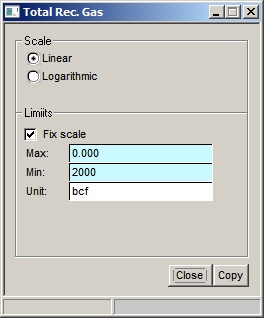
Choose the scale you want.
The scale is applied to the current result phase (in the case above, total recoverable gas). Each phase can have a separate scale.
To go back to automatic scaling, un-check the Fix scale box.
The Copy button allows you to set the given scale for this phase to all loaded prospects and/or consolidations.