Installation Options |
  
|
Installation Options |
|
In this section there are a number of program options, which are common to all users of the program on this network. Mostly, these options are agreed when REP is first installed and should not be changed.
Installation options consists of two tabs, the categories are:
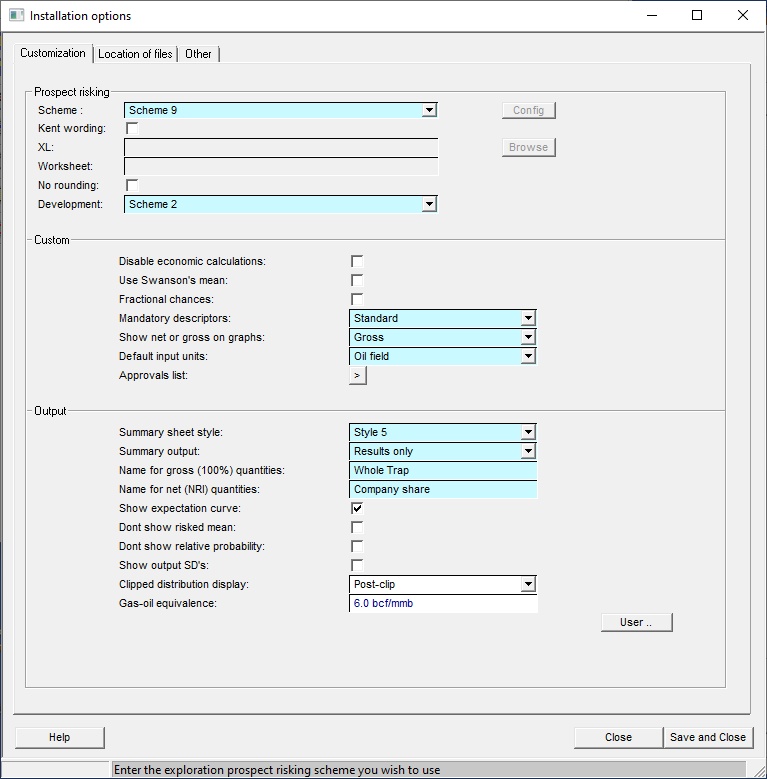
Prospect risking |
|
There are a number of different Prospect Risking Schemes implemented in REP, reflecting different (and always strongly held) views on this important aspect of prospect evaluation. The schemes are outlined in 'Prospect Risking Schemes'. It is strongly advised that you decide the way you wish to risk prospects when you first start to use REP (or ask us to implement the way you prefer to do it if none of the existing schemes suit) and then stick to it. [Note: Scheme 7 is really just a portal to an XL spreadsheet, which can be maintained by you, the user. If you choose this scheme you must enter the filename of the template XL file. See our section on 'XL-based Risking Schemes'.]
|
|
Scheme |
Enter the style of prospect risking you wish to use. This is used for all exploration risking. See also development risking below |
Kent wording |
Risks are numeric, but is some schemes are linked to English phrases ("likely", "ambiguous", etc.). Sherman Kent was an American professor who thought deeply about what these words should be, and here they are. His original article of 1964 was originally CIA classified, but is now available here. It an interesting and still relevant read. |
Config. |
With some schemes you can set the words yourself - click Config. to do this. |
XL |
Enter the risking XL file (used in Scheme 7) |
(XL) Browse |
Click to browse for risking XL file |
Worksheet |
Enter the worksheet name for the worksheet with summary risks |
No rounding |
Many risking schemes round category chances to the nearest 5%. In some of these (but not all) it is possible to disable the rounding. So if you enter a reservoir chance of 57% that's what you'll get. |
Development |
The risking scheme to use if your prospect is in developed acreage. This is chosen in Prospect | Resource type |
|
|
Custom |
|
Disable economic calculations |
Check to disable calculations using economic cut-offs. This is an option designed for those companies whose management believes that G&G professionals are sandal-shod dope heads who think that the only purpose of money is to commission really meaningful flower arrangements. |
Swanson's mean is defined as Mean (Mz) = 0.3 x p90 + 0.4 x P50 + 0.3 x P90. This is considered by many authorities (and presumably Swanson himself) as a more robust measure, especially when a results distribution is highly skewed. In REP, log-normal and normal distributions are clipped at 3 standard deviations from the mean (this is a feature of our Monte-Carlo algorithm) so the "true" mean and Swanson's measure rarely differ by much. Swanson's mean is commonly used in the industry and cynics often argue that its importance reflects overuse of the log-normal distribution. |
|
Fractional chances |
Check to enter and show chance of success as a fraction rather than a % |
Mandatory descriptors |
In the normal course of events you can get away with not filling in most of the textural and other descriptive entries in prospect calculations and consolidations. Mandatory description schemes insist that key entries are filled in. This can be important when you are storing the results on a corporate database. |
Show net or gross on graphs |
You can choose whether to display net (your company's share) or gross (whole trap) quantities on results graphs |
Default input units |
Choose to set the default unit as oil field or metric (though note that all units can be changed and mixed at any time). |
Approvals list |
REP allows for a list of appraisers/approvers. For each prospect you can enter the names of these people, and the date when they approved or appraised. You can enter the titles for these folk, to suit your corporate procedures. Click the right arrow to bring up the list. See Approvals list below |
|
|
Output |
|
Summary sheet style |
Choose a style for the main summary sheet |
Summary output |
The summary output can be results only or input and results. The standard prospect summary printed report (one page per phase) is printed in either case. In the latter, the input page is also printed. |
Name for gross (100%) quantities |
Enter the name for gross (100%) quantities on output sheets |
Name for (NRI) quantities |
Enter the name for net (production interest) quantities on output sheets |
Show expectation curve |
The expectation curve in a results graph is the risked cumulative reserves probability, and is the unrisked cumulative curve multiplied by the chance of success. It can confuse, so you can choose not to show it. |
Don't show risked mean |
Some people like to check this option, the risked mean being a value which can - in many cases - never be achieved as well as being a ranking parameter with little reference to value. |
Show output SD's |
Check if you wish to show the standard deviation of output distributions. |
Clipped distribution display |
How to display the key points on a clipped distribution: Post-clip shows the effective distribution once the clip has been applied, Pre-clip shows the P90/P50/P10 etc. as the distribution is entered, and before the clip is applied. This is cosmetic only, and affects the summary printout and the input variable table. |
This is the default factor to apply when converting gas volumes to equivalent oil volumes for the calculation of barrels-of-oil-equivalent (BOE). Most companies use a fixed factor across all assets, but you can set it also on a field-by-field basis if you wish. |
|
[User] |
Click to edit the user defaults |
|
|
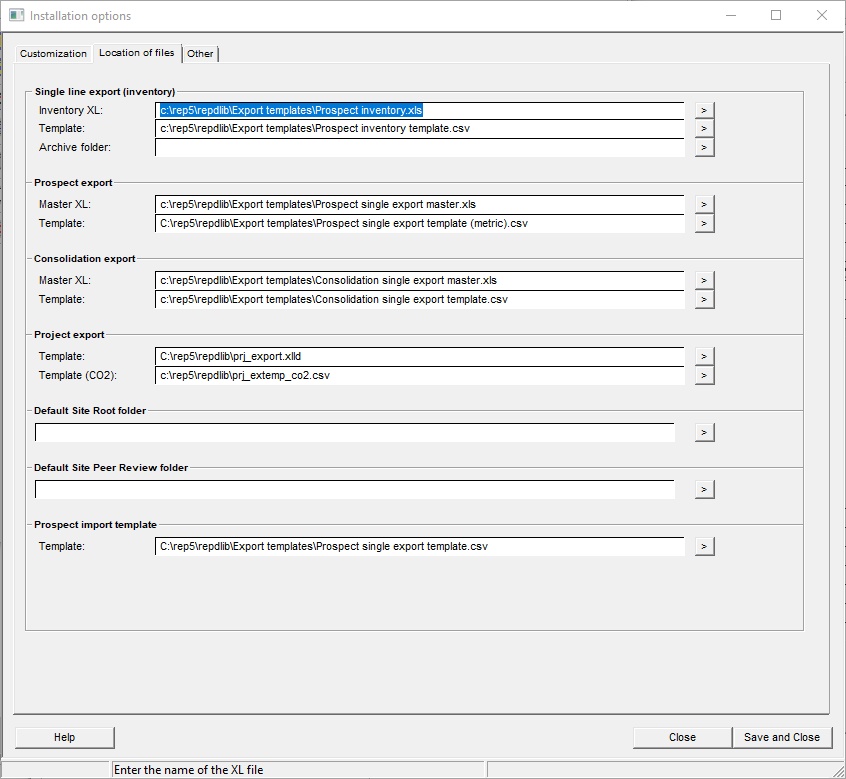
There are a number of files which are used to control import and export, backup and other program features.
for import and export there are two types:
Single line export puts the results of a prospect or consolidation into an "inventory" spreadsheet - one line per prospect/consolidation. See Exporting "Single line" Data to an XL Spreadsheet. The archive folder is used if you want to make a copy of the prospect file and any associated Files (maps, spreadsheets, etc.).
Direct export puts the prospect or consolidation data into a copy of a master spreadsheet. The XLS master spreadsheet file is copied to the data area and data for the current prospect put in it according to the template file. Separate sets may be used for prospects and consolidations. See Exporting data to XL Spreadsheets.
There is also a template used for importing prospect data from a spreadsheet.
When REP is first installed, example master and template files are included with the distribution. These are part of the Site defaults. You can copy these to this "user defaults" area by clicking "Use site defaults". In any given company, the site files may be modified to suit, and these should be specified in Installation options so that they are available to every user here.
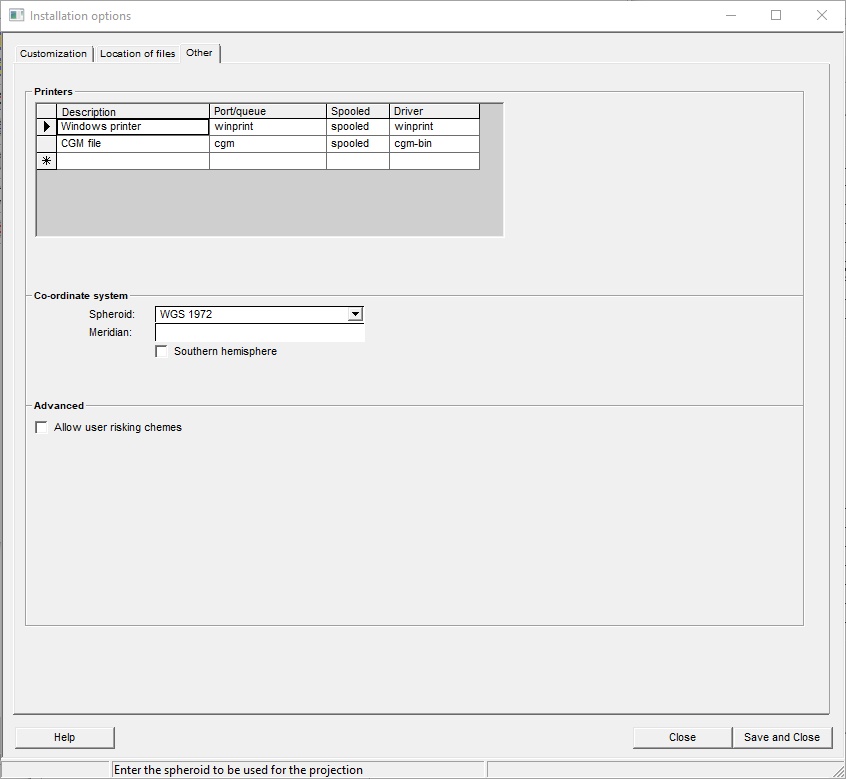
Printers |
For "advanced" users (geeks) only |
|
|
Co-ordinate system |
The system that will be used to define the location of any new prospect. |
Meridian |
The zero meridian in UTM eastings. |
Southern hemisphere |
Check the box if the location is south of the equator. |
Spheroid |
The projection system controlling latitude and longitude. WGS 1984 is the standard for GPS. |
|
|
Other |
|
Allow user risking schemes |
Most companies choose a risking scheme and stick with it. In this case choice of risking scheme is part of the installation and cannot be changed by individual users. But some consultancies are obliged to mirror their clients' schemes, and individual users can use their own schemes. If so, check this box and set the user scheme in Set-up | User options |
REP allows for a list of appraisers/approvers. For each prospect you can enter the names of these people, and the date when they approved or appraised. You can enter the titles for these folk, to suit your corporate procedures. The dialog below shows the defaults, but you can change them. They are shown on the approvals tab of any prospect ID, where of course you enter the actual names and dates.
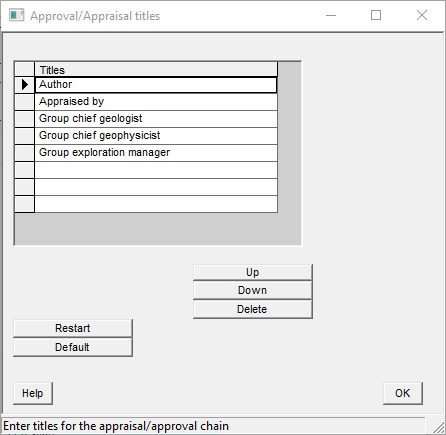
You can enter a chain of up to 8 people. (Or you can drill prospects; but, with 8 people, probably not both.)