File Database Administration |
  
|
File Database Administration |
|
This facility allows you to list REP files and validate and check ID's. You can use it to back up your files data base and also to create lists of basins, plays, prospects, etc.
Run the module by choosing File | File database admin from the first REP window.
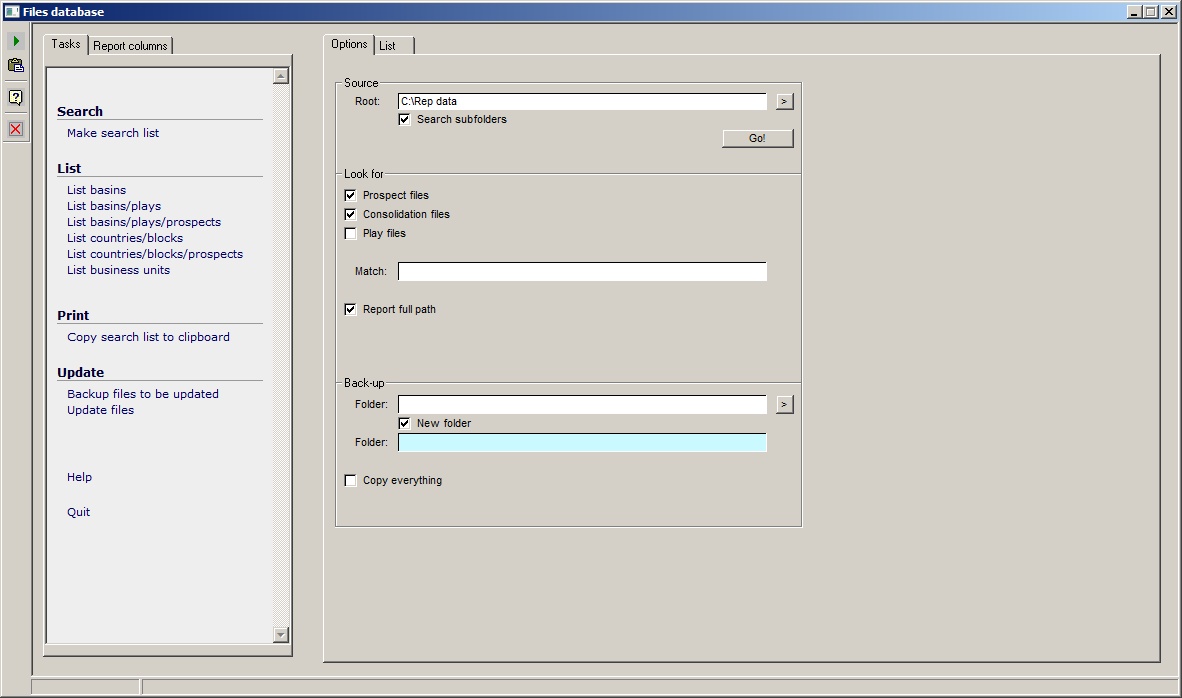
The first thing to do is to create the list of files. On the right hand window, in the Source box, enter the root folder. Any files in this and - optionally - any sub-folders will be searched. By clicking the relevant check-boxes, you can search for .ppr, .pco and/or .pla files (prospect, consolidation and play files).
You can look for particular files by using the match entry. Enter a text string with wild cards: for example, entering "dodgy*" will find all files starting with the letters d-o-d-g-y. The matching test is done on the file name, excluding the folder.
Then click the [Search...] button on the Options tab. The program finds the files and opens them to read the basin, play, country and clock of each one. When it is done (and it may take some time, especially if you are searching over a network) it will display the list on the List tab on the right hand side.
All the file properties that can be listed are shown in the Report columns tab on the left hand side. Use the check box to flick on and off the properties you are interested in.
In the list on the right side, click in a column header to sort it according to the contents of that column.
[Note: Column BU is Group/Business unit. Column Date is the date as recorded in the file and SDate is the same date but in the sort-friendly format yy-mm-dd.]
You can export the list to the clipboard by clicking on the top left cell of the table (so that the whole table turns black) and clicking Ctrl-c, the standard Windows short-cut for copy to clipboard. Then in Excel, or any other Windows compatible software, click Ctrl-v or Edit | Paste.
You can edit cells entries in the table just by over typing. This is best for occasional entries or where the entry is blank; where the same ID needs to be changed in lots of files, it is best done as per the next section.
An entry with changed ID has a red text.
Background colours:
Red |
The file cannot be read |
Light green |
Has the same business unit, basin, play, prospect name, segment and country as another file. |
Dark green |
As with light green, but additionally has the same mean total recoverable oil and gas, GPOS and EPOS as another file. |
On the tasks pane, there are five lists to make: basins, basin/plays, basin/plays/prospects, countries/blocks, countries/blocks/prospects. Each list brings up a new dialog, in which you can edit (respectively) the basin names, play names, prospect names, block names and prospect names (again). It is best to start with basins, then do plays, then prospects and so on. The edited name should be entered in the "Authorised Name" column. An entry which has nothing in the authorised name column will not be altered. Click the [...] button to copy the current name into the authorised name column, where it can be edited.
When you have done your changes, click the [Update] button.
Note: This only updates the list in memory, it does not update the files. This can be done later.
You can make back-up copies of all the files you are about to update. Choose the "Backup files to be updated" option in the task menu. But first, you need to specify where the files are to be copied. Do this on the Options tab on the right. Browse to a path. If you want to make a new sub-folder in this path, click "New subfolder" and give it a name.
If you want to make a backup copy of all the files in the search path, check the "Copy all files" box.
Click Update files to make the required changes to the actual REP files. Only those with changed entries will be updated (even if you have backed up all of them).
Options |
|
Source |
|
Root |
The folder to search for REP data files |
Search subfolders |
Tick this box if you want to search sub-folders |
Search... |
Click this button to start the search |
Look for |
|
Prospect files |
Check if you want to search for prospect files |
Consolidation files |
Check if you want to search for consolidation files |
Play files |
Check if you want to search for play files |
Match |
Enter a match criterion. You can use wildcard characters. e.g. hu* will match any file that starts "hu" |
Back-up |
|
Path |
The folder where backup files will be written. It must already exist |
New folder |
Check if you want to make a new folder .. |
Folder |
.. and give it a name |
Copy everything |
Tick if you want to make a backup of all the files in the search path, regardless of whether they have been changed or not. |