Data Export Template |
  
|
Data Export Template |
|
You can create and edit export templates. Go to File | Export | to XL summary file. In the export dialog, click the Make template button.
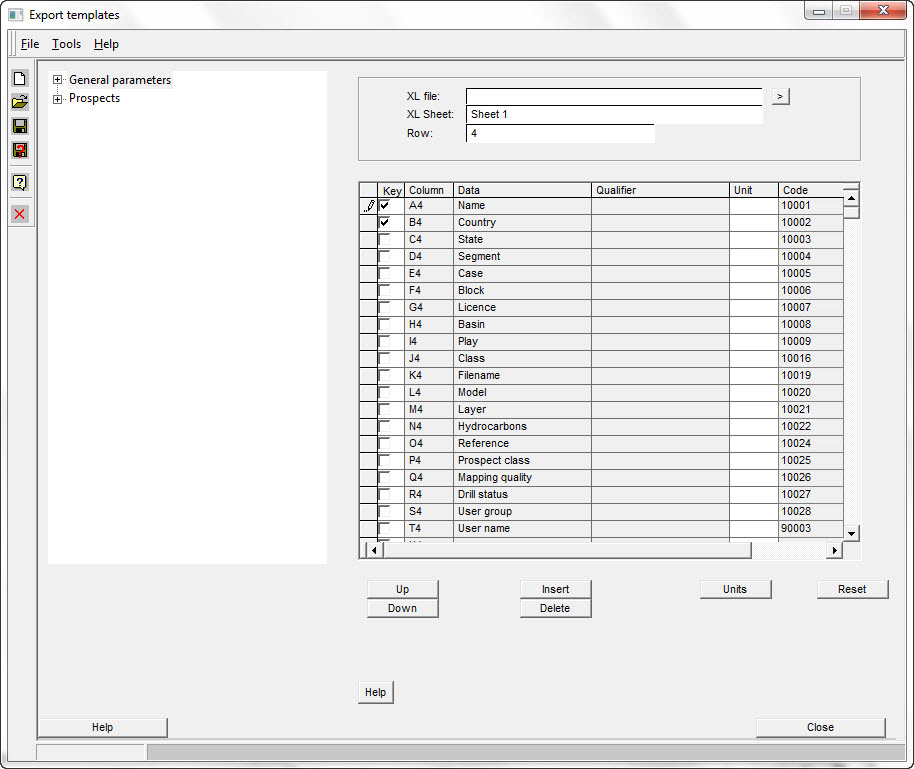
On the left of the dialog is a list of all the data entities that you might wish to export to the spreadsheet. On the right is the definition of the template. The basic action is to double-click an entity on the left and add it to the list on the right.
If you are starting from scratch, consider using the Tools | Default option to load up all the possible data into the table. Note that loading everything gives more than 256 column, so you'll need Excel 2007 or later.
XL file |
Enter the file directory or use the [>] to browse. |
XL sheet |
This is the name of the sheet in the XL spreadsheet. Sheet1 is the XL default. |
Row |
The first row of data in the spreadsheet. |
Table |
|
Index |
Check any column which forms an index key - a combination of columns which uniquely define the prospect. Usually prospect name, block and country will do it. |
Column |
The XL column in which to place these data specifies in the next column. |
Data |
The REP data to export. |
Qualifier |
A qualifier of the data to be exported - e.g. which P value for results. If you choose data by double clicking in the tree on the left, this entry will be populated automatically. |
Unit |
Where applicable, the unit you want to use. See Units button below. |
Code |
Used by REP to identify the data. |
Buttons |
|
Up/down |
Move data up and down the column list |
Insert |
Adds a blank entry line above the current row in the table, and moves all the entries below "down" a column |
Delete |
Deletes the data at the current row, and moves all the entries below "up" a column |
Units |
Changed the units of all entries of the same type in the template to be the same as the unit is the current row. For example, if the current row is Oil-in-place, and the current unit mmstb, all oil volumes in the template are changed to mmstb. |
Reset |
Deletes all the entries |
Menu options |
|
File open,save etc |
Opens, saves etc templates |
Make this the default template |
Makes the current template the default for export. This updates the entry in the "Setup | User options | Location of files" dialog. All exports of this type will use this template. |
|
|
Tools | default |
Makes new templates from scratch. There are three options: Everything, Hydrocarbon and CO2. The Hydrocarbon and CO2 options just puts entries into the template suitable for those resource types. |
Make XL |
Makes a new XL spreadsheet with columns corresponding to the template entries. Note: 1. The sheet name is always Sheet1, regardless of what you've got in the template spec. Change it in the spreadsheet to what you want, before saving it. 2. The spreadsheet is unformatted. It's up to you to make it look nice. |
Load XL |
Starts XL and loads up the current XL file. The current XL is as defined in the "Setup | User options | Location of files" dialog. |
|
New template |
|
Open template |
|
Save template |
|
Save template as... |
|
Help |
|
Close |


