Prospect evaluations |
  
|
Prospect evaluations |
|
Evaluations are the set of different interpretations of a single resource volume. As time goes by you hope your lead becomes a prospect, a discovery, a potential field development and finally goes on production. Your estimates of resource will certainly change through this process, and it is interesting to see this in both in terms of volumes and in terms of individual input parameters.
A new evaluation is a copy of the current one, which is then frozen so that you cannot change it. You can make as many evaluations as you like. In normal working mode, only the current evaluation is shown.
To see how to analyse and plot evaluations see Evolution and analysis.
To start a new evaluation, go to File | New | Evaluation. The New Evaluation dialog will appear.
If you have not already done so under Parameters | Identification | ID: General, then you now have the opportunity to name your current evaluation. You are then asked to provide a name for your new evaluation and, using the radio buttons, to choose which stage you are evaluating (pre-drill, post-drill or appraisal). Click [Create] to generate your new evaluation.
Once you have created a new evaluation, all old evaluations are then automatically frozen.
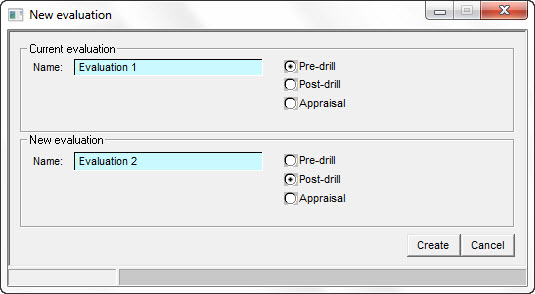
Current evaluation |
|
Name |
Enter the name of the current evaluation |
Pre-drill/Post-drill/Appraisal |
Choose the evaluation stage of the current evaluation |
New evaluation |
|
Name |
Enter the name of the new evaluation |
Pre-drill/Post-drill/Appraisal |
Choose the evaluation stage of the new evaluation |
Create |
Click to confirm creation of new evaluation |
Once a new evaluation has been created, you may use the  icon to reveal all evaluations below your prospects in the prospect list of the summary screen; click the icon again to hide them.
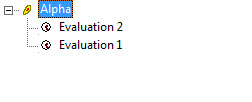
It is possible to manage your evaluations by right-clicking on an evaluation in the prospect list of the summary screen.
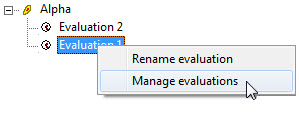
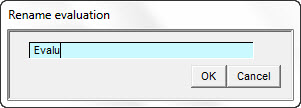
Clicking on "Rename evaluation" will open a dialog, in which to rename your selected evaluation.
Clicking on "Manage evaluations" will open the Evaluations dialog, which will appear as a standard dialog for all evaluations, no matter which one you have selected.
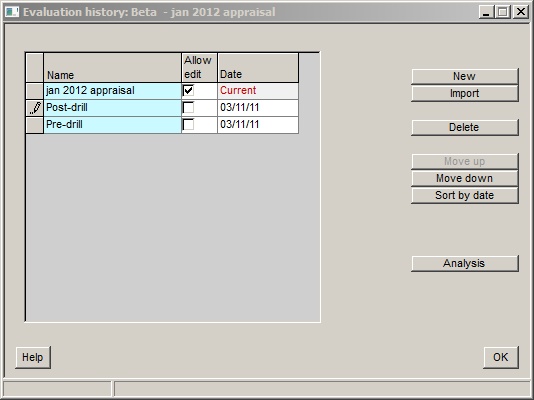
New |
Click to create a new evaluation. The New evaluation dialog is described above. |
Allow edit |
By checking in this column you can override the default, which is that old evaluations cannot be edited. It is not recommended to do so however. |
Import |
Click to import an evaluation from one or more existing prospect files. The program will check that the prospect names match, but they don't have to, you can ignore the warning. The date of the imported evaluation will be set to the date the imported file was last calculated, but you can edit it. |
Delete |
Click to delete the selected evaluation. You cannot delete the current evaluation. |
Move up, down |
These buttons allow you to move the evaluations up and down the list. They should be in reverse date order, and the current evaluation must be at the top. |
Sort by date |
This will sort the evaluations in reverse date order. |
Analysis |
Opens the Evolution and analysis dialog, where you can plot the historical evaluation data for the current (and any other loaded) prospect. |