Printing |
  
|
Printing |
|
This page is split into three sections:
Print Options: This section outlines the different print options available in the summary screens for both Prospect/Field and Consolidations.
Print Formats: This section outlines the three different output formats available.
Printer Settings: This section explains how to change the fundamental printer settings.
You will find the print options in the File menu of the Prospect/Field and Consolidations summary screens.
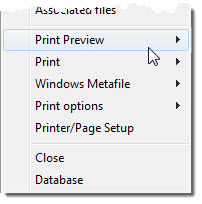
There are five printing options on each summary screen:
This allows you to take a quick look at your output before sending it to your printer. You can zoom in and check individual pages before printing them.
Print just prints the selected report, either to the current windows printer or to the current CGM file, depending on the option set in Print Options (see below).
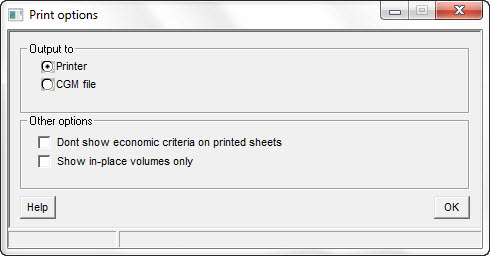
This allows you to switch between Windows printing and CGM (metafile) output. To enable CGM output, choose Print Options and change the printer to CGM file and click on the [x] to close the window. This then means that when you next select Print, the output will go to a CGM file of your choice.
[Note: '_[page#]' will be appended to the file name that you choose. For example, if you choose 'Prosp.cgm' as your file name, then the pages will be written to 'Prosp_1.cgm', 'Prosp_2.cgm' etc. This is because many packages (notably Word and PowerPoint) cannot display multi-page CGM files. Please also note that Print Preview does the same as Print when in CGM file mode. To re-enable Print Preview, go back into Print Options and reselect 'Windows Printer'.]
Here, you may also choose to hide economic criteria and non-in-place volumes (i.e. recoverable) from printouts.
This option sends the selected report to an '.emf' or '.bmp' file of your choice. Please note that, in release v4.12, only the first page of a multi-page report will be exported.
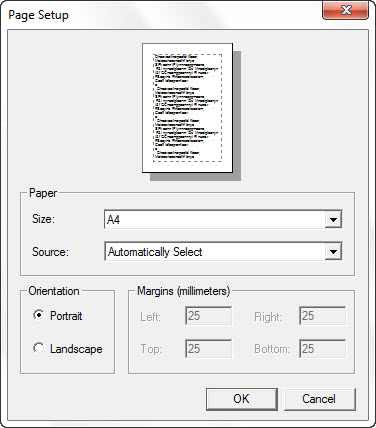
Allows you to change page attributes, such as: paper size, orientation, margins, etc.
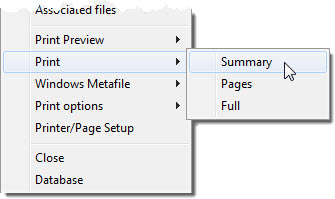
There are three ways in which to present your output:
Printout summary reduces your output to a summarised two-page report.
Printout full, as you would expect, prints out a complete report.
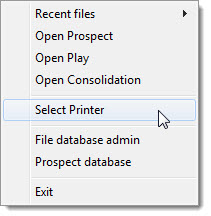
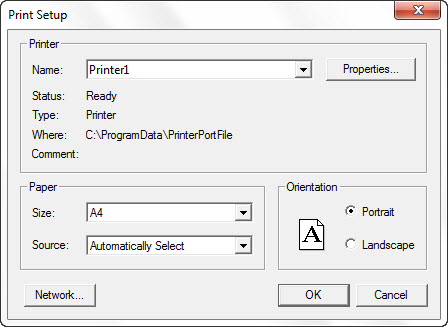
It is possible to adjust the default printer settings on the REP start-up page by selecting File | Select Printer. This opens the Print Setup page where you may choose your default printer and any settings that you would like to set as a standard for your output.