Input files |
  
|
Input files |
|
In this section you enter the variables to be consolidated.
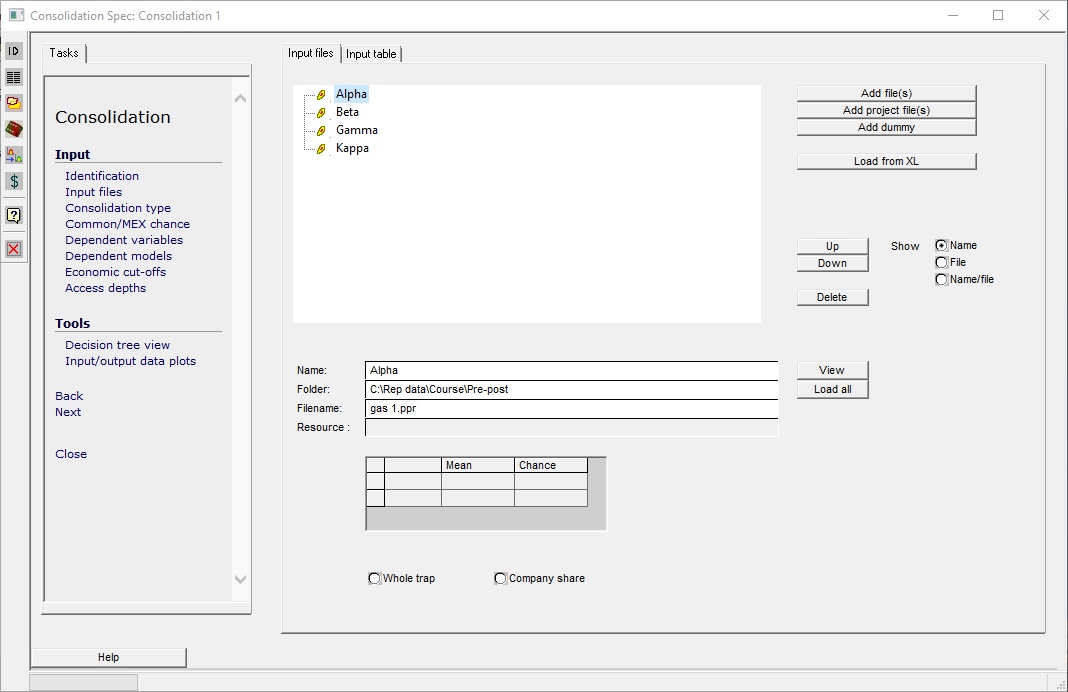
In the Input files screen you enter the inputs you wish to consolidate.
Click on the Add file button to add a new file to the list. The remaining columns in the table will be filled in from data found in the input file.
The Add dummy button allows you to enter a dummy entry. With a dummy entry, you specify the hydrocarbon type, volumes and risks in a set of dialogs. Dummy entries are useful for (a) what-if scenarios and (b) those occasions when you have some prospect results but no REP file - perhaps because they were generated by another piece of software or some wild-eyed loons, probably both.
When you are doing a consolidation with common risks, REP will check that any file added conforms to the rules for the consolidation type. To avoid this check use the "Stacked prospects" option. See Consolidation typefor more details.
Add file |
Add in a new entry - prospect or consolidation, from file. It uses the standard windows dialog. |
Add project file |
If you are using a project clicking this shows a a tree view of all the prospects and consolidations in the project. Click to load one into this consolidation. The tree dialog also has a browse button to add a prospect or consolidation not in the project. It will be added to the project as well as this consolidation. Remember to save the project with the new entries, should you wish. There is also a filter facility, so you can choose files based on criteria such as hydrocarbon type, resource class or volume. |
Add dummy |
Add a dummy entry and enter it's details in succeeding dialogs |
Load from XL |
Load dummy entries from an XL spreadsheet. See loading dummy entries from XL |
Up |
Click to move selected input file up |
Down |
Click to move selected input file down |
Delete |
Click to remove the current entry. |
Name/file/name/file |
How the entries are displayed in the tree view. |
View |
·If the entry is a prospect, the prospect is loaded into the prospect summary screen and you can make any changes here. The changes you make are immediately active, so if you re-run the consolidation it will use the changed data. You do not need to save the prospect file first - but of course if you want to keep your changes you should do so eventually. ·If the entry is another consolidation, the consolidation is loaded into the consolidation summary screen. As with a prospect, you can make any changes by making it the active consolidation. The changes are immediately active, so if you rerun the parent consolidation it will use the changed data. You do not need to save the input consolidation file first - but of course if you want to keep your changes you should do so eventually. ·If the entry is a dummy entry, you will go through the sequence of screens defining the entry. |
Load all |
Loads all the entries into the prospect/consolidation dialogs. |
Whole trap |
Show whole trap volumes or .. |
Company share |
.. show company share. |
|
|
Click the [View] button for any file to see the input data in more detail.
·If the entry is a prospect, the prospect is loaded into the prospect summary screen and you can make any changes here. The changes you make are immediately active, so if you re-run the consolidation it will use the changed data. You do not need to save the prospect file first - but of course if you want to keep your changes you should do so eventually.
·If the entry is another consolidation, the consolidation is loaded into the consolidation summary screen. As with a prospect, you can make any changes by making it the active consolidation. The changes are immediately active, so if you rerun the parent consolidation it will use the changed data. You do not need to save the input consolidation file first - but of course if you want to keep your changes you should do so eventually.
·If the entry is a dummy entry, you will go through the sequence of screens defining the entry.
·
Order has no significance within a given consolidation; however if you change the order the results may change very slightly. This is due to the random nature of the Monte-Carlo process. This may be more noticeable if you are consolidating inputs of markedly different sizes.
You may specify up to 40 inputs to be consolidated in one pass. This is not a limitation, since you can (and should, with a lot of files) consolidate consolidations.
You can switch off entries, which is useful if you want to see how adding or removing entries. Do this by right-clicking an entry. Right-click again to switch it back on. Or, in the input table (next dialog) un-check and check the "Use" check box
The Input table is another view of the entries:
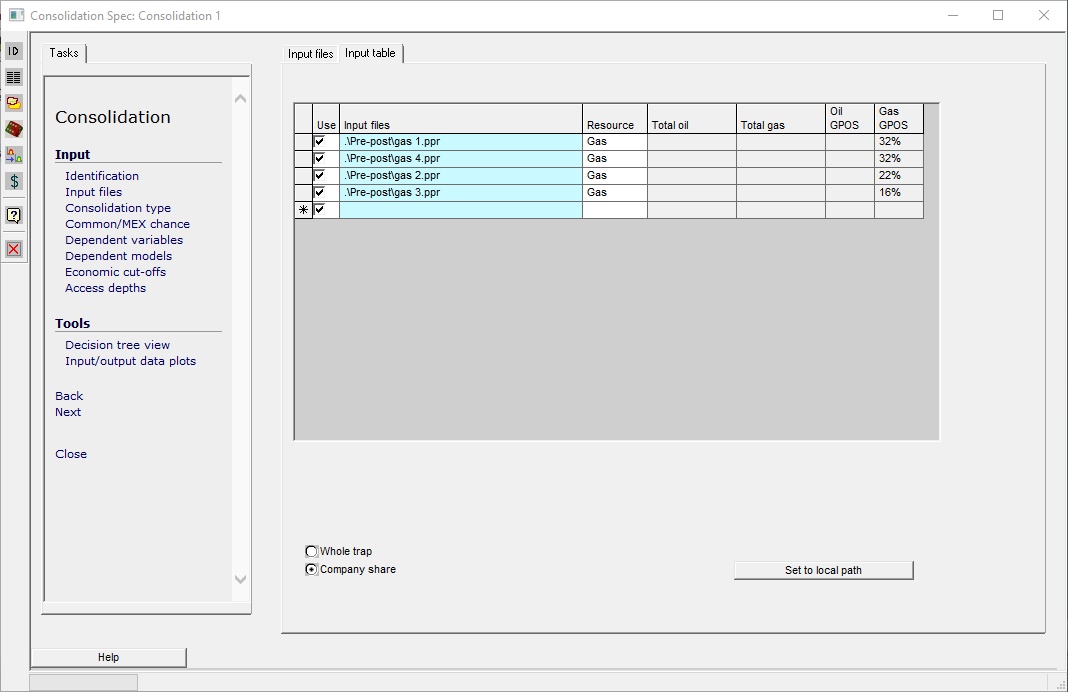
Use |
To include or not include the entry in the calculation. |
Whole trap |
Show whole trap volumes .. |
Company share |
.. or company share. |
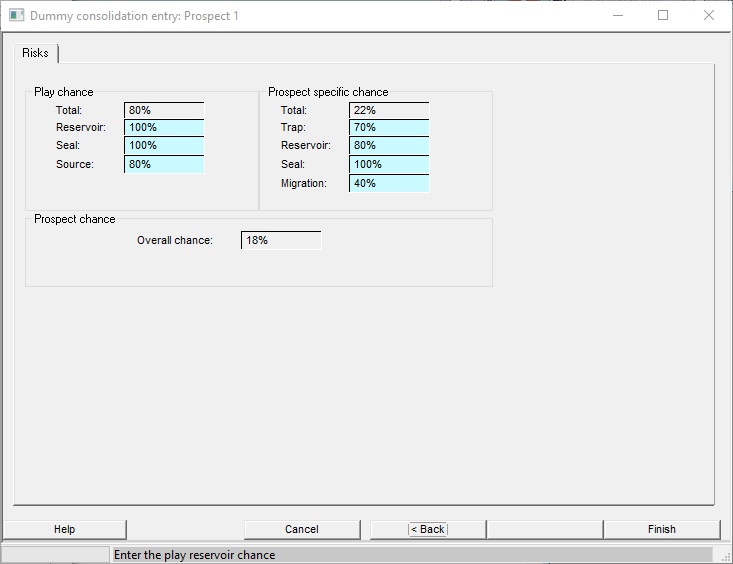
To enter a dummy variable you must fill in the following dialogs: ID/hydrocarbons/NRI; volumes; and risks.
You can edit an exiting entry by double clicking its name in the tree, or single clicking its name and clicking "View"
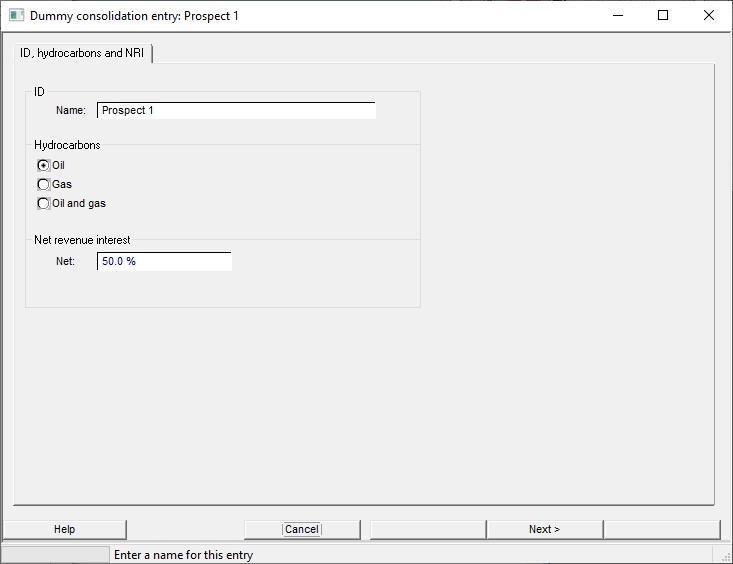
In the next dialog the volumes must be whole trap. There is one for oil and another for gas, whichever or both as appropriate:
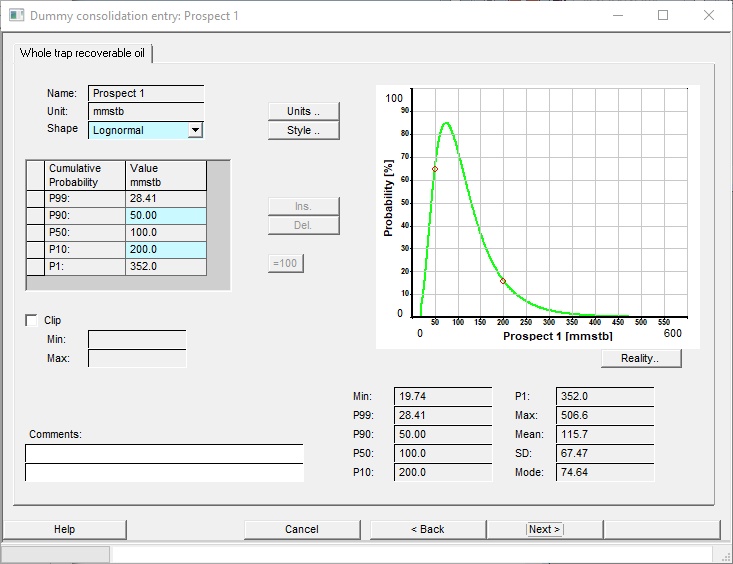
The risks dialog should reflect your current risking scheme. You may have to compromise if your risking scheme is a bad fit with the default (scheme 9).
To load a number of dummy entries, you can detail them in an XL spreadsheet laid out as shown. You should be able to swipe the table here and paste it into XL to get you started.
|
|
|
Oil |
Gas |
Play chance |
Prospect specific chance |
|||||||||||||||||
Name |
Hydro-carbon |
NRI% |
Shape |
Unit |
Min |
P90 |
P50/mode |
P10 |
Max |
Shape |
Unit |
Min |
P90 |
P50/Mode |
P10 |
Max |
Reservoir |
Seal |
Source |
Trap |
Reservoir |
Seal |
Charge |
Prospect 1 |
o |
50 |
lognormal |
mmstb |
|
50 |
100 |
200 |
|
|
|
|
|
|
|
|
100 |
90 |
80 |
70 |
60 |
50 |
40 |
Prospect 2 |
g |
70 |
|
|
|
|
|
|
|
beta |
bcf |
200 |
|
300 |
|
500 |
90 |
80 |
70 |
60 |
50 |
40 |
100 |
Prospect 3 |
o+g |
90 |
normal |
mmstb |
|
100 |
150 |
200 |
|
beta |
bcf |
20 |
|
100 |
|
250 |
80 |
70 |
60 |
50 |
40 |
100 |
100 |
Note that the first entry goes on line 2 of the XL file. Entries should be case-insensitive. Always check for correct loading (especially of units) by double-clicking the entry name in the tree and clicking through the input dialogs.
If you are using a project clicking this shows a a tree view of all the prospects and consolidations in the project. Click to load one into this consolidation. The tree dialog also has a browse button to add a prospect or consolidation not in the project. It will be added to the project as well as this consolidation. Remember to save the project with the new entries, should you wish.
Here is a very simple project tree - just four prospects and 2 consolidations (apart from the current consolidation)
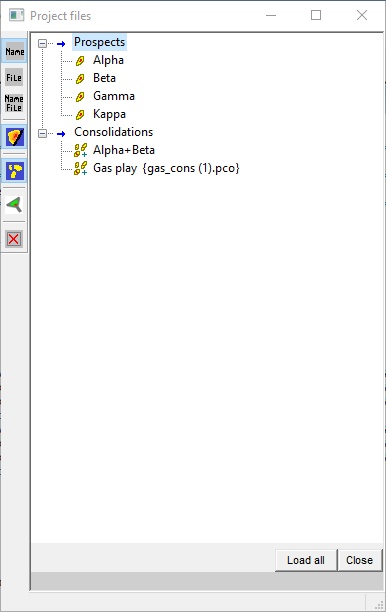
(By default the tree list will show the consolidation name, but you can show the file or name + file by clicking the appropriate toolbar button.)
Single click a name to add it to the consolidation.
|
|
|
If pushed in (which it is by default) shows all the prospects in the project |
|
If pushed in (which it is by default) shows all the consolidation in the project |
|
Brings up the filter dialog |
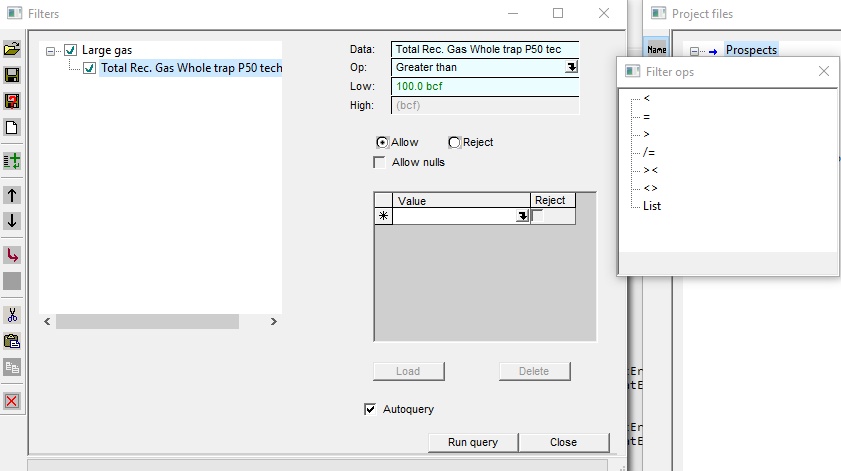
On the left is a list of the active filters - just one shown here. You can have as many as you like, and by default they act as ANDs: each filter in the set must pass for the set to pass.
On the right are the details of the current filter - see table below.
One useful feature is that you can save and retrieve filters, which makes it a lot quicker to deploy them.
Data |
The data you are filtering on. Click the drop down arrow to show a tree of all the things you can use. The data can in the form of a list (resource class..) a character string (user name..) or a number (P50 recoverable oil) |
Op. |
How the filter operates - choose from the list (List), enter a character string value (=) or make a numeric comparison (<, =, /=, >, ><, <>) |
Low, high |
The numeric values used in the test. Specify the units at the same time, if appropriate. |
Allow, reject |
If the test passes, then is that a cause to all the allow it, or reject it? |
Allow nulls |
If the value you are testing is null (for example, a P50 oil-in-place in a dry gas prospect) the default is for it to fail the test. Checking Allow allows it. |
Value |
For character string entries type in the string here. For list entries such as resource class or trap type you can choose from the drop down list. You can enter more than one option - you can choose contingent and reserve categories, for example. But default if it's in the list it's allowed and if it's not it isn't; but you can choose mix it up. |
Tool bar facilities |
|
|
Open a previously saved set of filters |
|
Save the current filter set |
|
Save the current filter set with a new name |
|
Start again |
|
Add a new filter to the set |
|
Delete the current filter |


