Prospect Database |
  
|
Prospect Database |
|
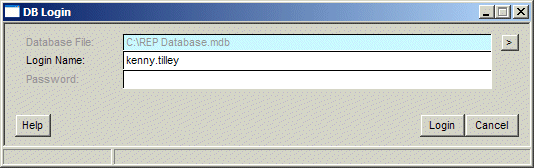
Your Database manager should have set up your login and password details. You can set up the default database and login name using the options in the main 'Setup-Installation' and 'Setup-User Options' screens, see here for details.
The main window is split into two sections: Functional items on the left and results are presented on the RH section. Clicking on the various tabs on the left should bring the relevant results tab to the front on the right.
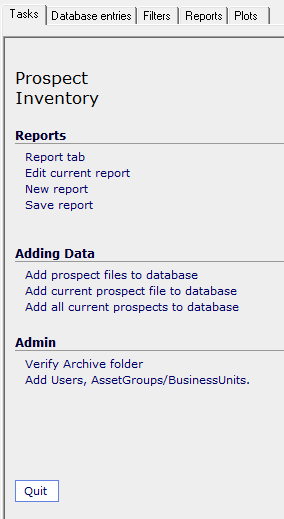
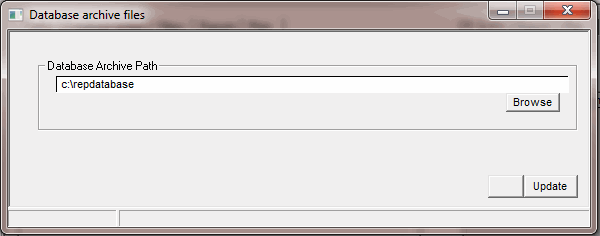
The "Verify Archive folder" option is used to create a home for copies of the prospect and consolidation files that get loaded into the database. These files should be seen as a "snapshot" of the prospect at the time they were loaded in. The folder must exist and be writable by the users for the database to function correctly.
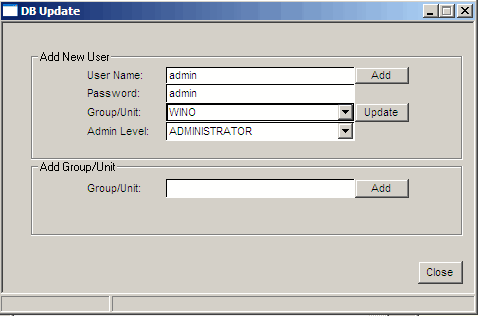
The 'Add Users' option brings you to this screen. If you have sufficient privelege, you can add business units and users to the database.
Add the user name and password, the default business unit for the user and his/her admin level and click 'Add'
If the business unit does not yet exist, add it in the relevant field and click 'Add', then select it from the list.
Adding Prospects and Consolidations to the database
Use the "Adding data" options in the "tasks" window on the left. There are three menu items. You can either just add the currently opened prospect or all the open prospects from the main prospect window. Alternatively, you can browse directly for sets of physical prospect files. You will be presented with a "database update" dialogue
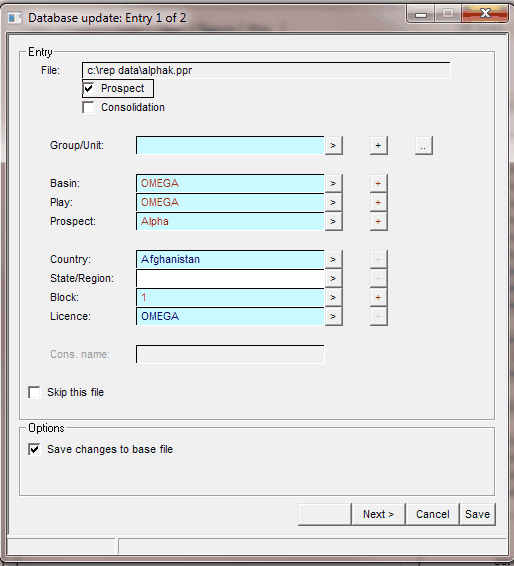
In this dialogue, fields with a light blue background are required, red text means the relevant entry is not already in the database, blue text means it already is. The easiest way to use this dialogue is to just click the "Save" button. The program will then automatically add the files and update the "red" entries and it will stop at missing entries for you to fill in (then click "Save" again to continue. This process assumes that there aren't any misspellings in the datafiles, the information from these screens in the prospect files are used):
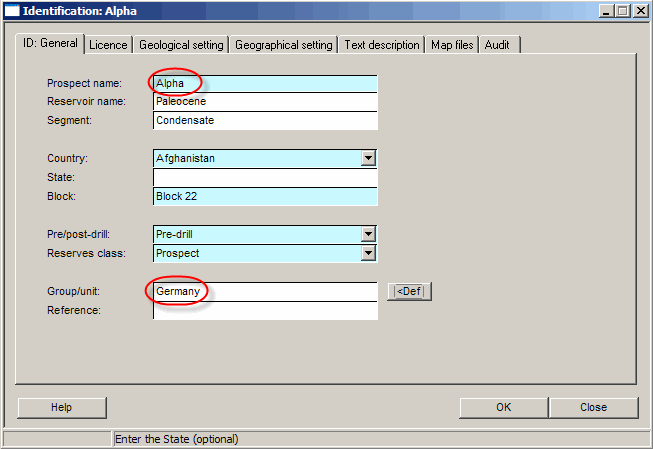
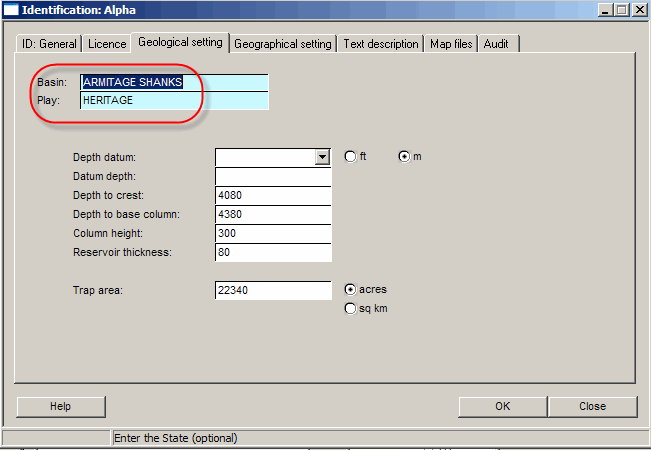
If you want to check, use the "Next>" and "<Back" buttons to cycle through the entries (but remember to go back to the first entry before clicking "Save"!). You can check the existing database plays/basins etc. by clicking the appropriate ">" buttons. You will be presented with a "tree" where you can "drill down" through the branches until you find the correct entry, double click to update the fields.
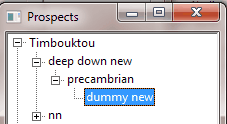
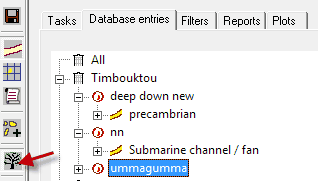
When you first come into the database, a tree of Business Units (appropriate to your administrative level) will be shown.
Click on the [+] symbol to open (or [-] to close) the branches of the tree to see the Basins, Plays and Prospects.
For example:

In this example, clicking 'Add basin', pops up a window to allow you to enter the name of the new basin in the current Asset/Business Unit:

Enter the name of the new basin, click OK and the tree will be refreshed to show your new entry (note, you may need to click the "full tree" button):
Running Queries and making Reports and Plots
There are three ways of querying the database, either through the RH menu "Query" option, or by using a filter, or by using a report.
Select the Business unit or Basin or Play or Prospect that you are interested in and click "Query" to run a quick query for that selection. The "DBQuery" tab on the RH side of the screen will update accordingly and the selected prospects will become the "current set" for running unfiltered reports and plots.

In this example, the prospects that have been stored in the 'Timbouktou' group have been identified.
There are a number of options at this point:
You can just go straight to making a plot using these prospects (more on this later)
You can build a report of the values you are interested in seeing from the selected group (more on this later).
Additionally, you can use the 'Filters' dialogue to make a selection. For example, by clicking the 'tree' button you can bring up a tree with all the standard REP prospect fields, double click to add one to the screen and set the conditions that you wish to test for. Note that, currently, using a filter will reset all previous selection criteria.
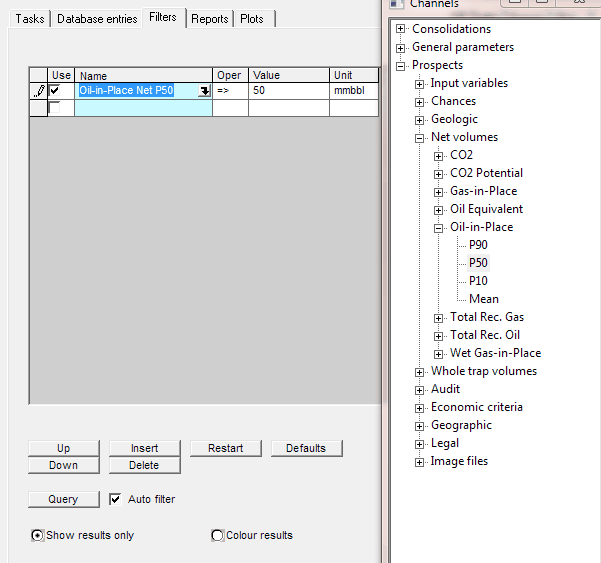
Depending on the option selected, the filtered prospects will be shown/hidden or highlit in red/green, depending on whether they passed the test:
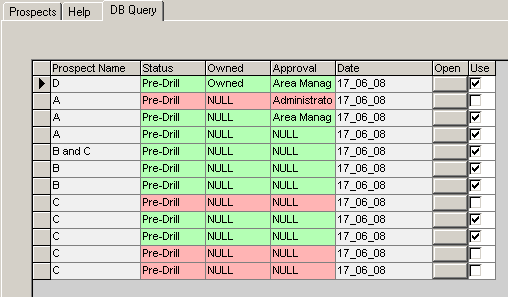
Once you've selected the list of files that you are interested in, you can click the "Report" button to generate a tabular list of interesting values extracted from the files in the database:
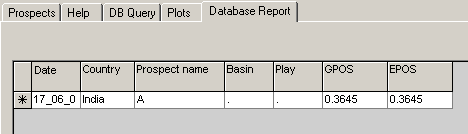
On the LH side of the screen is a list of saved reports, RH click to bring up a menu:

Double Click on a report to run it, for example, the output from a report might look like this:

The All/Latest radio button allows you to only report the most recent prospect file(s) for each named prospect. Note that files with the same date will all be shown. A similar logic applies to the All/Approved/Un-Approved radio buttons.
You can edit an existing report:
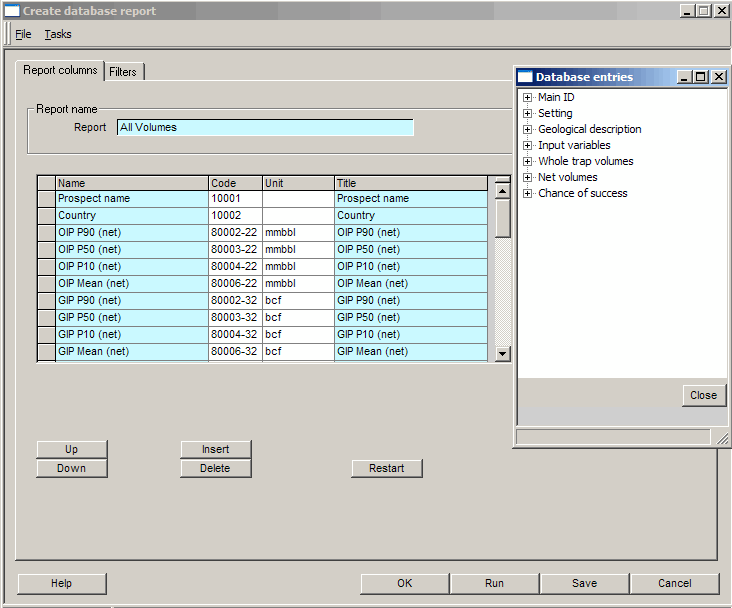
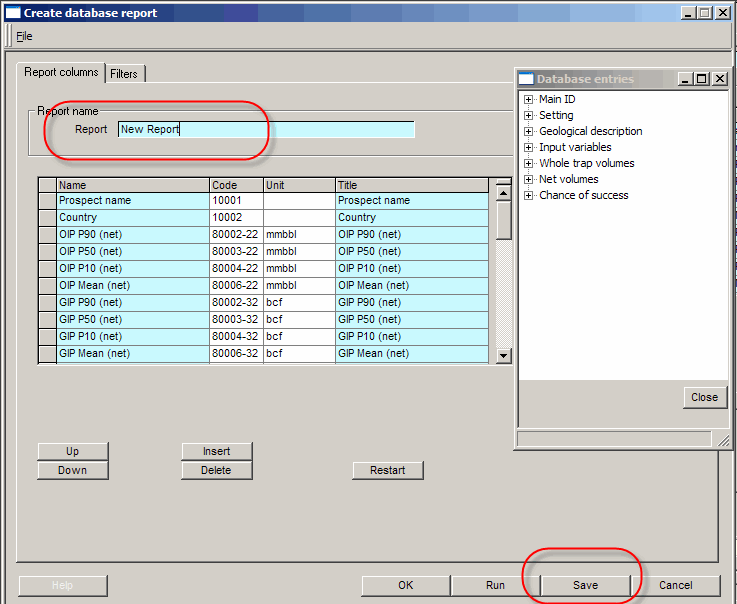
Again, use the [+] buttons to navigate the available fields and double click to add an entry to the list. Remember to edit the 'report name' field to avoid overwriting an existing report! Then use the 'Save' button to save the new report name.
As above, click the report you want to use and click 'Run' to see the new values. You can also print the report, using the 'Print' button.
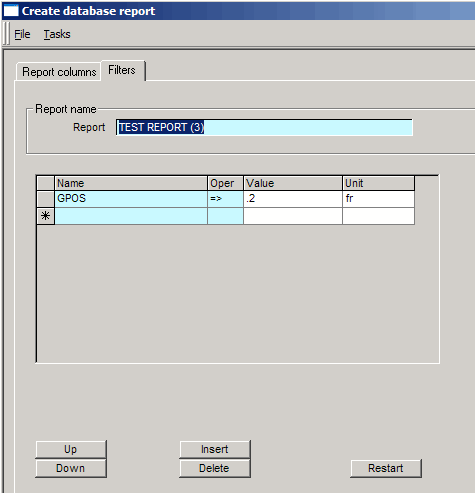
You can apply filters to the report and these are used to reject prospect files that fail any of the tests. An example is shown here that only displays/plots prospects that have a GPOS greater than or equal to 0.2 (20%):
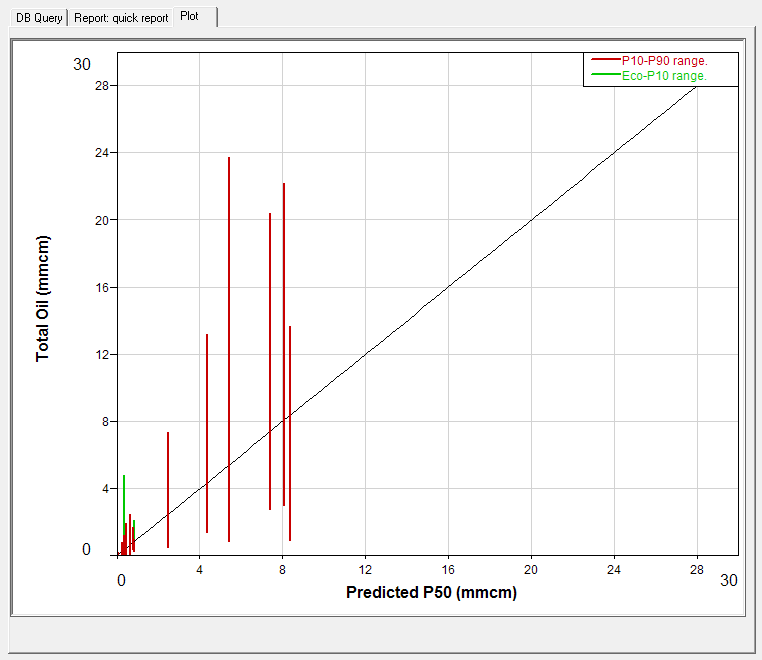
There are also some plots available, click on the 'Plots' tab to see them:
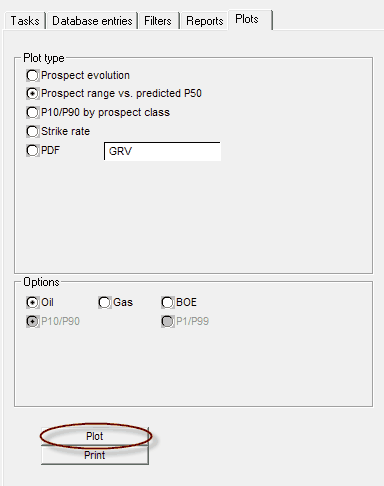
In this example, the pre-drill P10-P90 range is plotted as a green (economic)/red(technical) line against the pre-drill P50 value.
There is a 'Print' button at the bottom right hand corner of the window that will be enabled once you have run a report or a plot.
If you have both a table and a plot displayed, you will be given the choice of printing the listing, the plot, or both. The printer selection dialogue will open for each style, to give you the chance to change orientation (e.g. so you can produce a landscape table and a portrait plot).