Associated files |
  
|
Associated files |
|
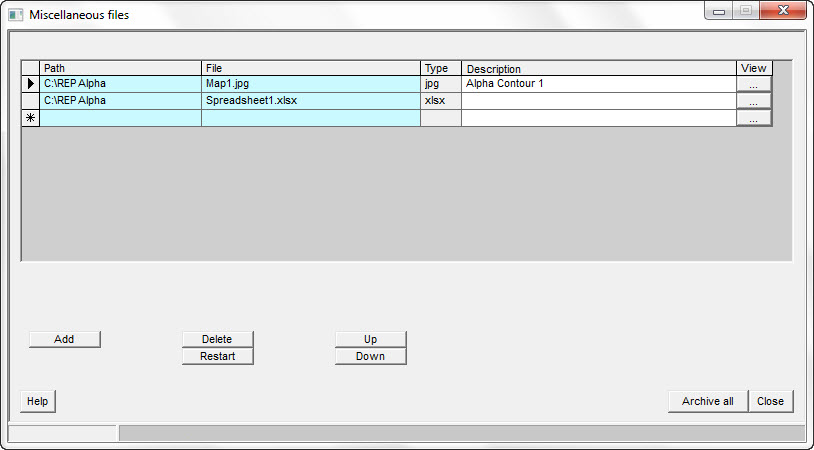
It can be useful to list non-REP files (spreadsheets, reports, maps etc.) that are related to a prospect as a simple document list.
Populate the list by clicking the [Add] button; highlight one or more files in the Windows file browser and click [Open] to load.
You can also drag and drop files from a Windows explorer file list. Drop into one of the first two columns in the REP window.
To sort the data, click with the right mouse button in the column title area. The column you click in will designate the sort criteria.
Click the [...] button (under the "View" column) to open a file. This has the same effect as double clicking its name in Windows Explorer. If there is a program associated with the file type it will be run.
The [Archive all] button copies the prospect file, any map files and all files specified here to a new directory in the archive path. The archive path is set in Location of Files, see section on 'User Options' for more information on this. REP creates a new directory (with the prospect name and a time stamp) and puts the files into it. You can then zip up the directory and send it to your friends, e-bay etc..
Columns |
|
View |
Click to view file: This has the same effect as double clicking its name in Windows Explorer. If there is a program associated with the file type it will be run. |
|
|
Buttons |
|
Add |
Click to add a new file |
Delete |
Click to delete selected file |
Restart |
Click to delete all current entries |
Up |
Click to move the current row up |
Down |
Click to move the current row down |
Archive all |
Click to archive files. See above |