Prospect layers |
  
|
Prospect layers |
|
In mature areas it is sometimes the case that you know the reservoirs so well that, even if a prospect is undrilled, the likely reservoir subdivisions are sufficiently well known to be separately modelled. In this case you can divide your prospect into separate reservoir layers.
There are three geometrical configurations.
Seal at top layer: layers are one below the other and the top of the top layer and the base seal are everywhere coincident.
Unconformity trap: a structural configuration where multiple reservoir layers are unconformably overlain by a top seal.
Top and base envelope: same as seal at top layer, but you also enter a base surface (envelope) which everywhere defines the vertical extent of the reservoir
For each case, you must have an area/depth table. For the first, you must choose the "top surface and reservoir thickness" GRV option. For the second you should have "top and base surfaces" (though top surface and reservoir thickness will also work).
Each layer has distinct probability distributions for:
·Thickness
·Porosity, net-to-gross and water saturation (or Sw-height function).
·Recovery factor
All the other properties (area/depth table [in the case of the first configuration], contacts/spill points, fluid properties (1/Bg, Bo) etc.) are the same for all layers, and are taken from the first layer you enter.
Note that in all these layer options there is one hydraulic unit - one water contact applied to all layers. If you have reservoirs with separate water contacts (or differing chances of discovering hydrocarbons) you must use consolidations.
If you have defined surface shifts (top reservoir or base seal), these are also taken from the first layer; all lower layer shifts are ignored.
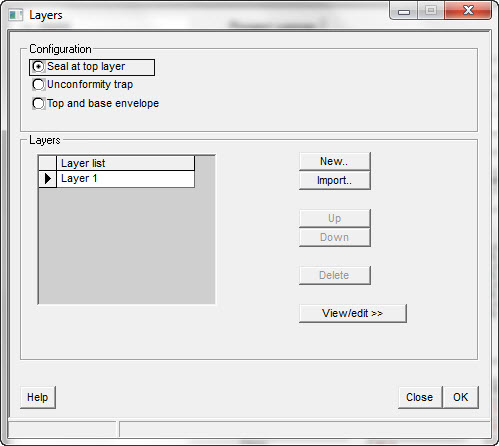
Configuration |
|
Seal at top layer |
Click for stacked layers (one below the other) |
Unconformity trap |
Single trap, unconformably overlain by a top seal |
Top and base envelope |
Same as seal at top layer, but you also enter a base surface (envelope) which everywhere defines the vertical extent of the reservoir
|
|
|
Layers |
|
New.. |
Click to add new layer |
Import.. |
Click to import layer from a REP .ppr file |
Up |
Click to move selected layer up |
Down |
Click to move selected layer down |
Delete |
Click to delete selected layer |
View/edit >> |
Click to view/edit selected layer properties |
First you must enter the top layer as if it was a stand-alone prospect. Remember, if you are modelling the first configuration you must use "top surface and reservoir thickness" for GRV input.
To enter more layers and to edit the ones you have already defined go to Parameters | Layers. A list of the current layers is shown in the table.
To enter a new layer, click the [New..] button. Then enter Layer thickness, Porosity, NTG and SW and finally recovery factors as usual. By default, all the layer properties are copied from the previous layer. The new layer is added on the bottom of the list.
You can also import a layer from an existing REP file. Click [Import..]. This is particularly useful if you have REP4 files where layering could be done but only by using consolidations. You can only import one layer at a time. If you import a multi-layer REP 5 file, only one layer from the input file will be retrieved.
Rename layers by over-typing their names in the table. You can also move layers up and down by using the [Up] and [Down] buttons. When you do this, the area/depth table and all the other common layer properties are copied from the old top layer to the new top layer.
To edit layer properties, click in the table on the layer you want to edit and then click the [View/edit >>] button. This will take you through the sequence of thickness, porosity, NTG, etc.
If you just want to look at one property for all layers then bring up the required distribution for any layer. If you then click another layer in the list on the left of the main Prospects/fields window, the entry screen will update with the chosen layer properties.
Just run the calculation as normal. At the end, the results for all layers will be displayed in the Prospect/fields window. To view individual layer results, click the layer in the prospect list.
When you do a print summary, only results for all layers are shown. To get a layer-by-layer summary, go to Print | Pages (or Print Preview | Pages) and check the layer summary entry.